Canvass an area you draw on the map
This guide walks you through creating a poll-based Field activity — a door-to-door canvass scoped to everyone inside a poll you’ve drawn on the map.
A custom-map poll is a named boundary that groups everyone whose address falls inside it. This workflow starts from a poll you’ve already drawn on the map, then turns it into a door-knocking activity that’s ready to assign to volunteers.
The one thing that confuses new users: the area you draw on the map is saved as a boundary, but when you build an activity it shows up under the Poll data source. Same shape, two names.
Who can do this
| Action | Permission needed |
|---|---|
| View the Map and draw turfs | Map access |
| Create an activity | Activities → Create |
Owners and admins have this by default. Volunteers and field agents (recruiters and captains) cannot create turfs or activities.
Before you start
- Create the poll you’ll canvass. This workflow starts from an area you’ve already drawn (or imported) on the map. If you haven’t made one yet, see Polls → How polls are created — draw it on the map or import it — then come back here.
- You need at least one Survey. A Field activity always attaches a survey — the questions volunteers ask at the door. If you don’t have one yet, create it first under Surveys → New Survey, then come back. (New to surveys? See Surveys.)
1. Open the new-activity form
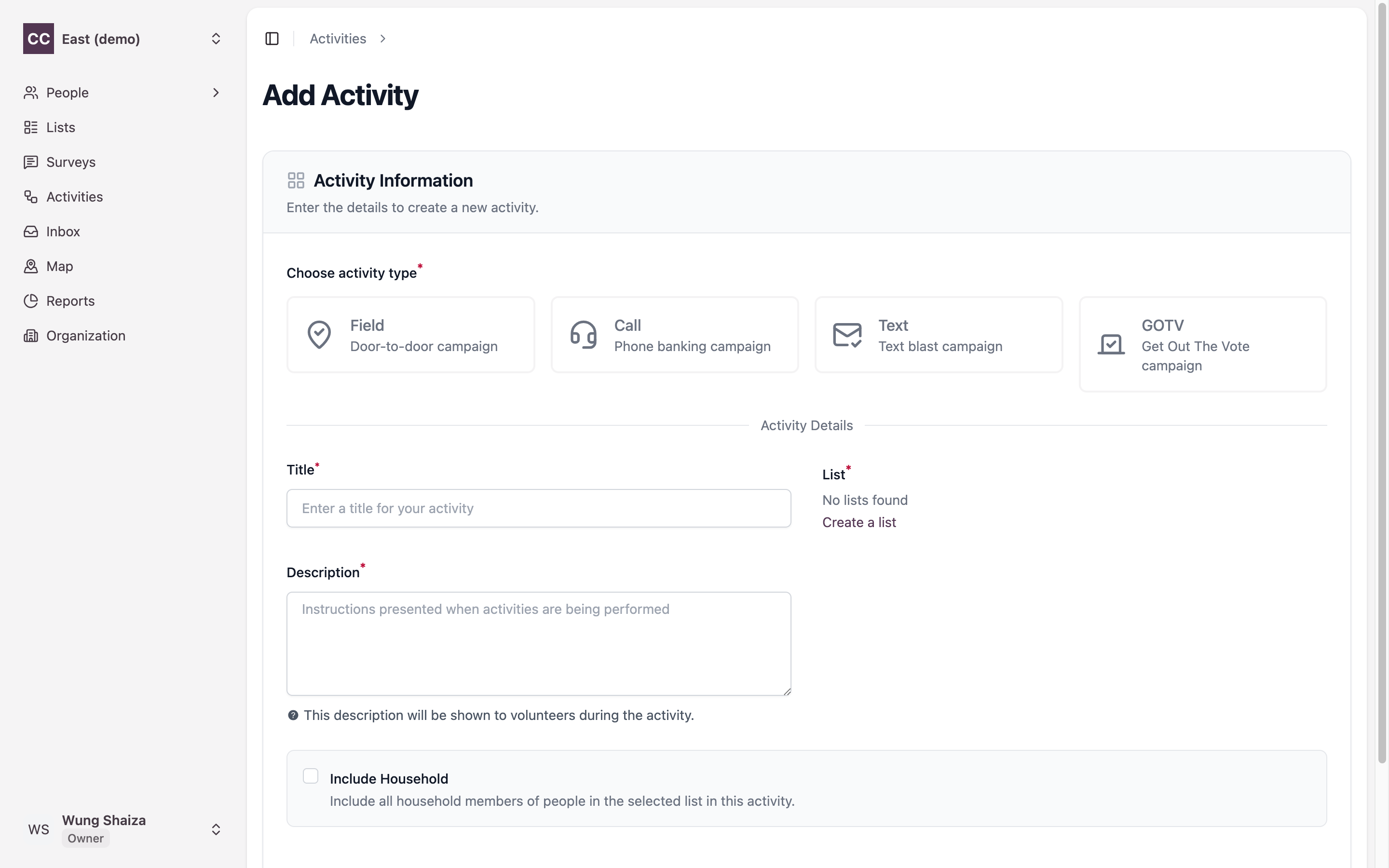
In the sidebar go to Activities, then start a new activity. Pick Field as the activity type (door-to-door campaign).
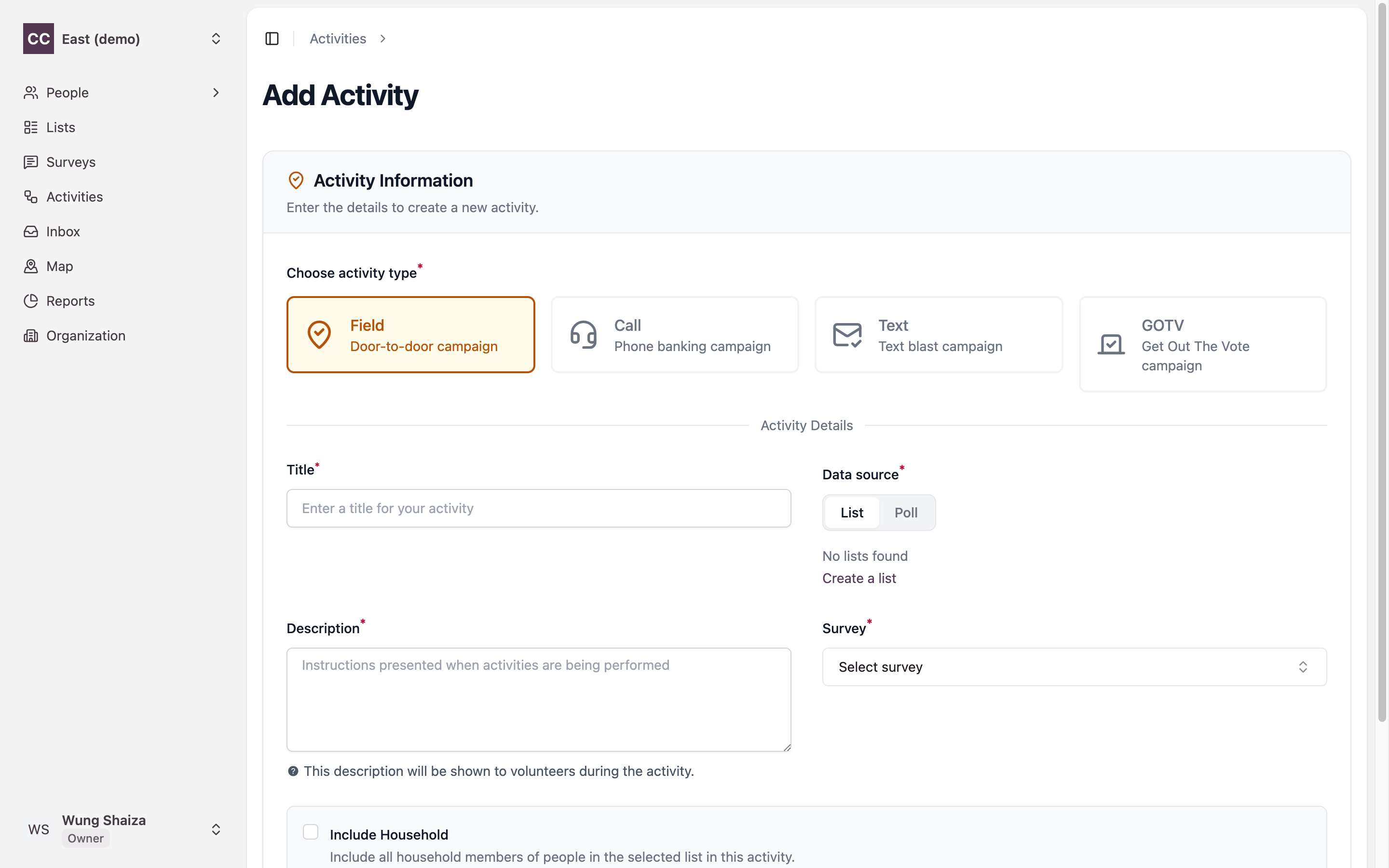
Choosing Field reveals a Data source toggle and a Survey picker.
2. Switch the data source to Poll
Click Poll on the Data source toggle. A Poll dropdown appears, listing the areas you saved on the map. Search for and select the poll you created.
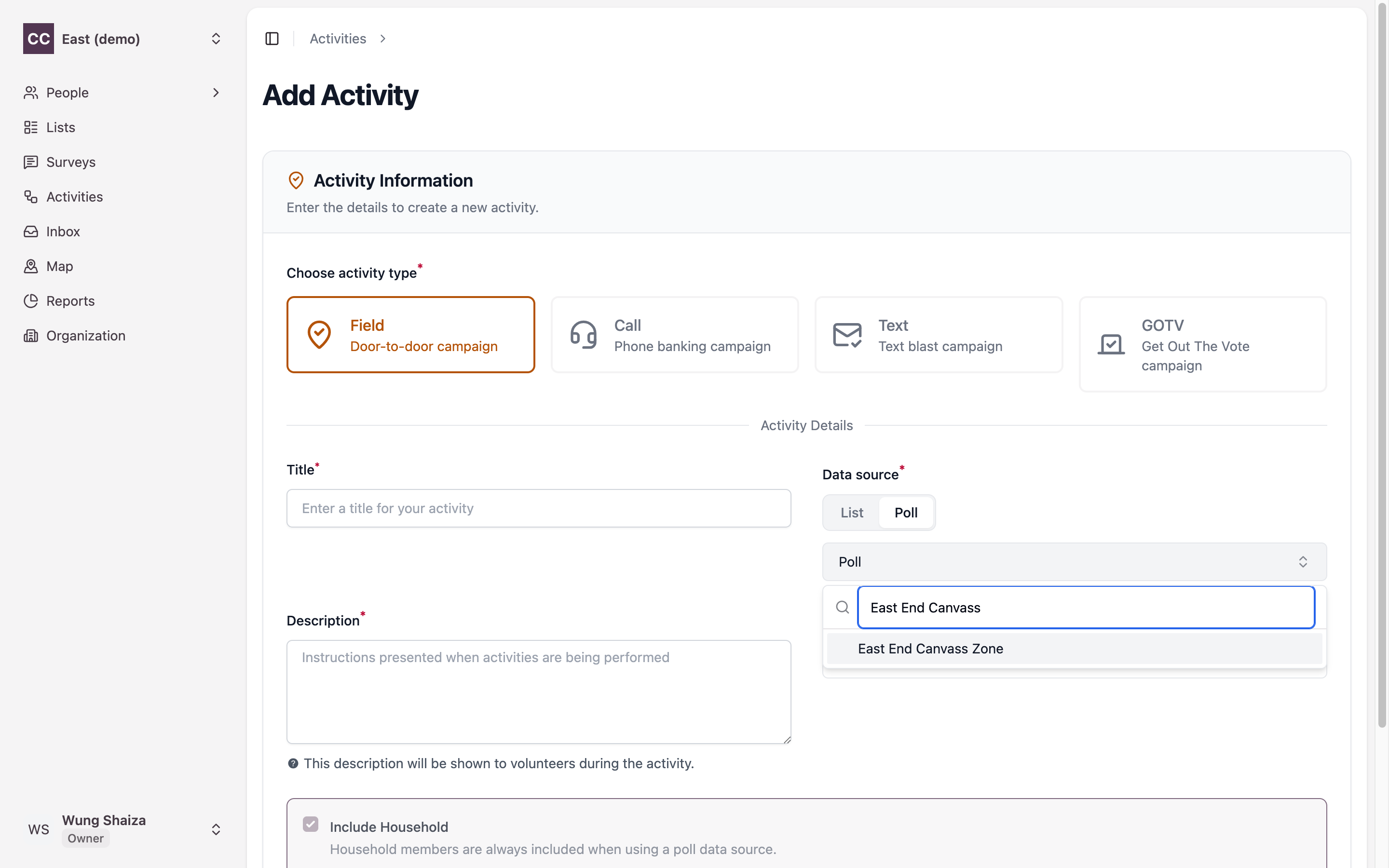
When you choose Poll, Include Household is turned on automatically — a poll activity always covers everyone in each household inside the boundary.
3. Fill in the rest and create
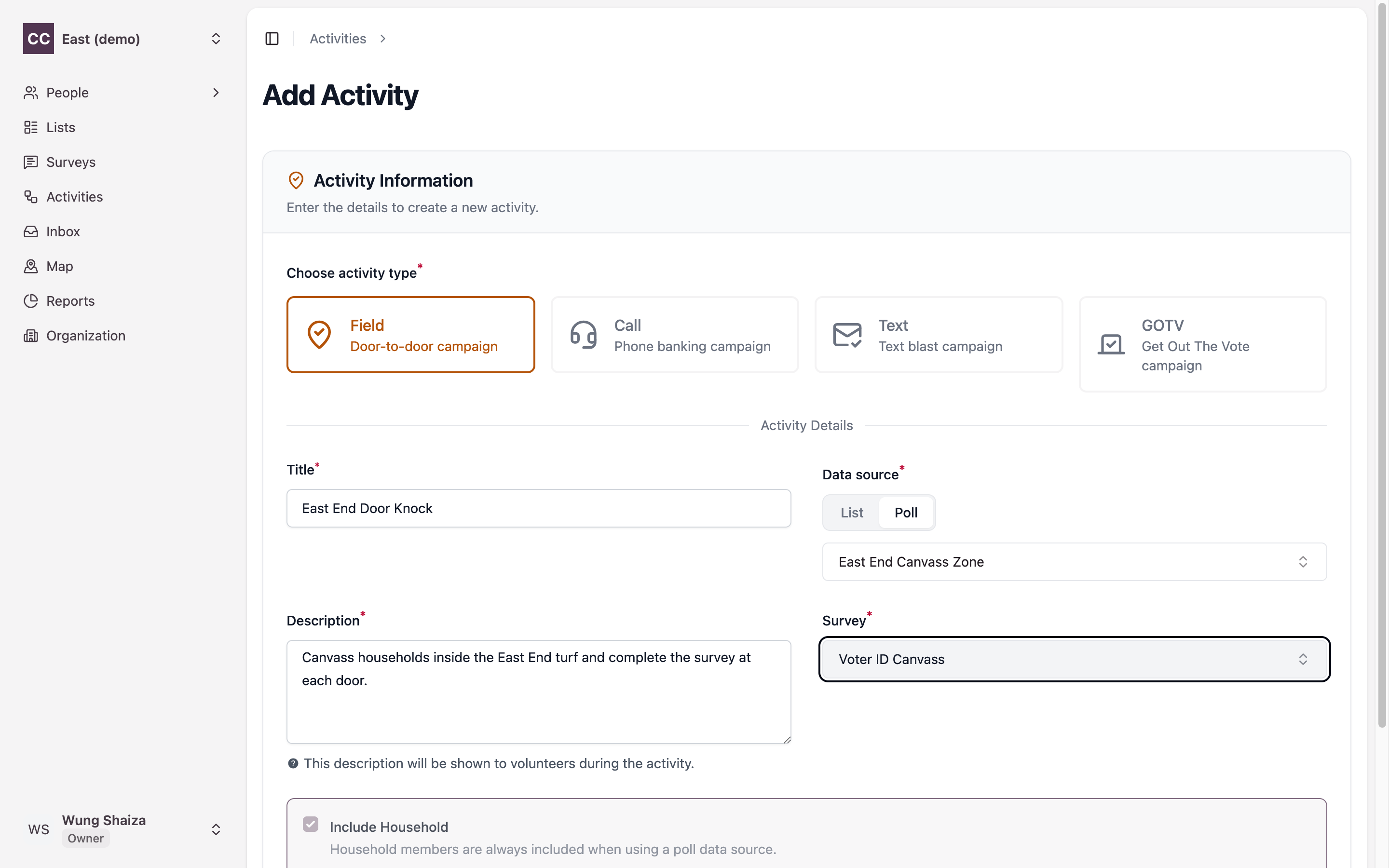
Add a Title, a Description (shown to volunteers at the door), and choose your Survey. Then click Create Activity.
4. Done
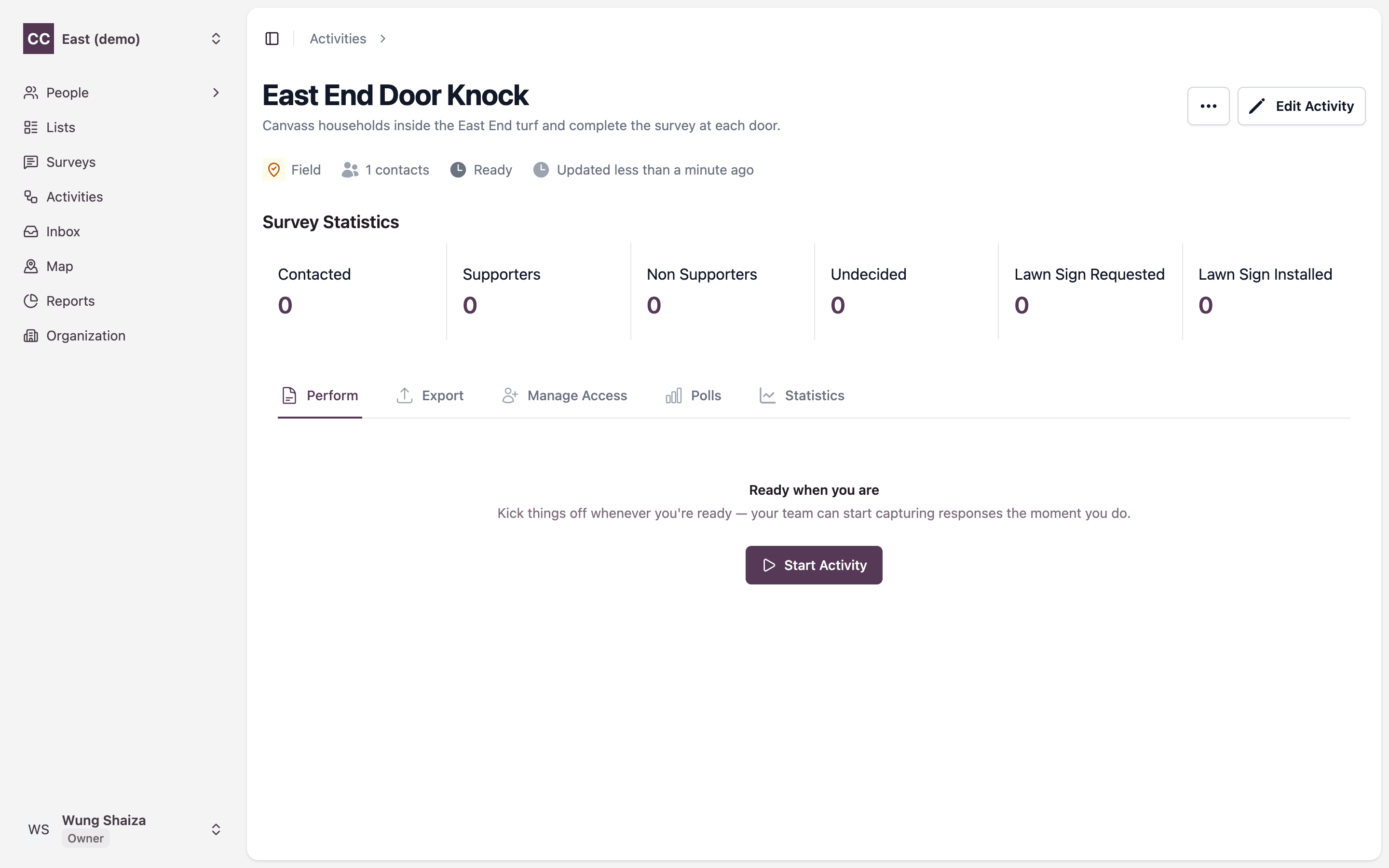
You land on the new activity. It’s a Field activity, Ready to start, with the contacts pulled from inside your poll.
Open the Polls tab to confirm your poll is now the activity’s boundary, with its households ready to canvass.
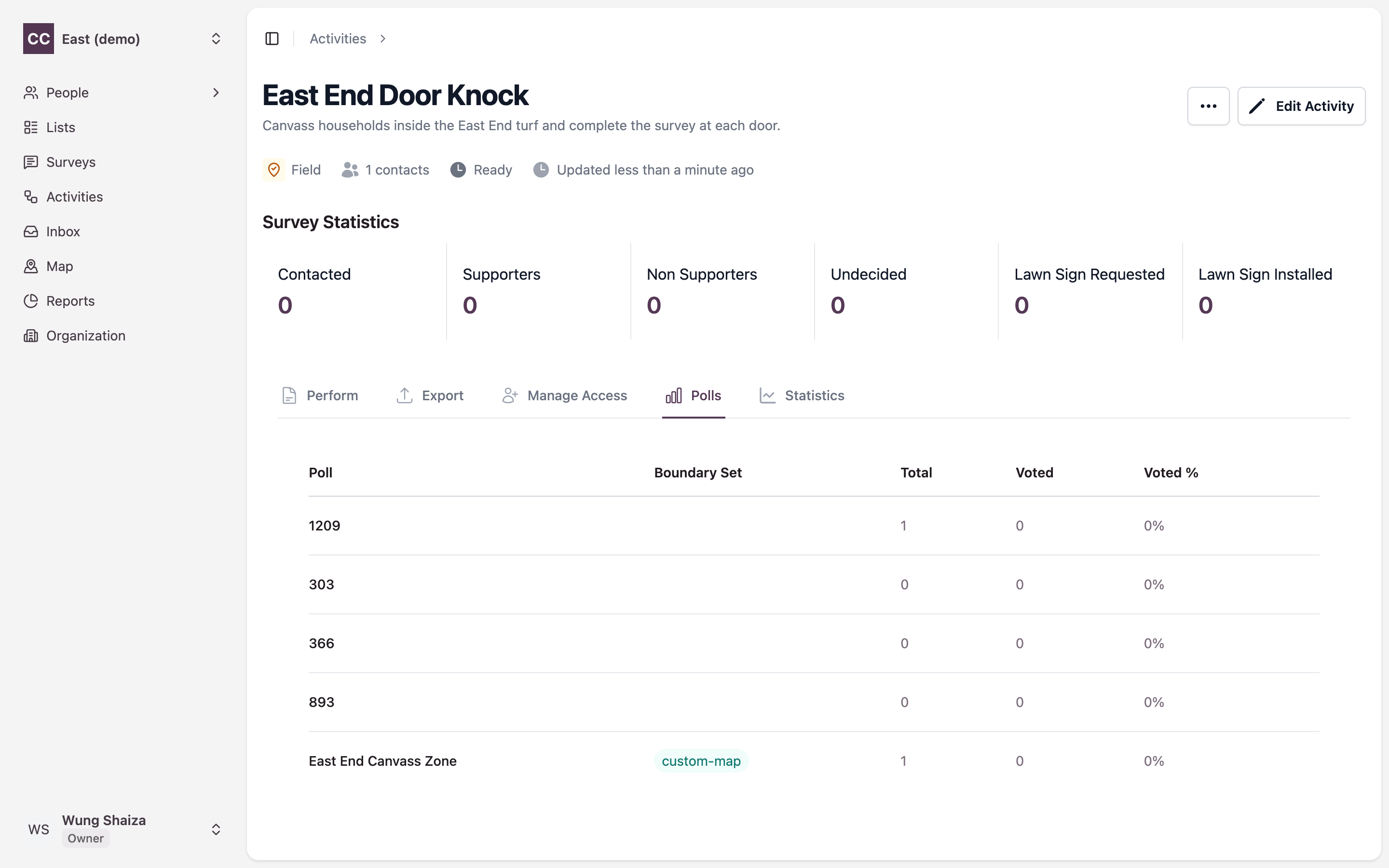
Why are there extra polls listed here? The Polls tab shows the poll you selected plus every other saved area that geographically overlaps it. Those extra rows aren’t activities you created — they’re just other saved areas that share some of the same ground as the one you picked. Your selected poll (Central Ajax Canvass Zone above) is the one driving this activity.
Related
- Polls — draw and manage the map areas you canvass.
- Canvass a group of people you choose — the same kind of canvass, scoped to a saved list of people instead of a map area.
- Activities — how activities work, and the snapshot they take when created.